Secure Computing SG570 Instrukcja Użytkownika Strona 32: Unpack the SnapGear unit
 1
 2
 3
 4
 5
 6
 7
 8
 9
 10
 11
 12
 13
 14
 15
 16
 17
 18
 19
 20
 21
 22
 23
 24
 25
 26
 27
 28
 29
 30
 31
 32
 33
 34
 35
 36
 37
 38
 39
 40
 41
 42
 43
 44
 45
 46
 47
 48
 49
 50
 51
 52
 53
 54
 55
 56
 57
 58
 59
 60
 61
 62
 63
 64
 65
 66
 67
 68
 69
 70
 71
 72
 73
 74
 75
 76
 77
 78
 79
 80
 81
 82
 83
 84
 85
 86
 87
 88
 89
 90
 91
 92
 93
 94
 95
 96
 97
 98
 99
 100
 101
 102
 103
 104
 105
 106
 107
 108
 109
 110
 111
 112
 113
 114
 115
 116
 117
 118
 119
 120
 121
 122
 123
 124
 125
 126
 127
 128
 129
 130
 131
 132
 133
 134
 135
 136
 137
 138
 139
 140
 141
 142
 143
 144
 145
 146
 147
 148
 149
 150
 151
 152
 153
 154
 155
 156
 157
 158
 159
 160
 161
 162
 163
 164
 165
 166
 167
 168
 169
 170
 171
 172
 173
 174
 175
 176
 177
 178
 179
 180
 181
 182
 183
 184
 185
 186
 187
 188
 189
 190
 191
 192
 193
 194
 195
 196
 197
 198
 199
 200
 201
 202
 203
 204
 205
 206
 207
 208
 209
 210
 211
 212
 213
 214
 215
 216
 217
 218
 219
 220
 221
 222
 223
 224
 225
 226
 227
 228
 229
 230
 231
 232
 233
 234
 235
 236
 237
 238
 239
 240
 241
 242
 243
 244
 245
 246
 247
 248
 249
 250
 251
 252
 253
 254
 255
 256
 257
 258
 259
 260
 261
 262
 263
 264
 265
 266
 267
 268
 269
 270
 271
 272
 273
 274
 275
 276
 277
 278
 279
 280
 281
 282
 283
 284
 285
 286
 287
 288
 289
 290
 291
 292
 293
 294
 295
 296
 297
 298
 299
 300
 301
 302
 303
 304
 305
 306
 307
 308
 309
 310
 311
 312
 313
 314
 315
 316
 317
 318
 319
 320
 321
 322
 323
 324
 325
 326
 327
 328
 329
 330
 331
 332
 333
 334
 335
 336
 337
 338
 339
 340
 341

Note
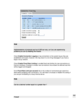
If you wish to retain your existing IP settings for this network connection, click Advanced
and Add the secondary IP address of 192.168.0.100, subnet mask 255.255.255.0.
Set up the SnapGear unit’s password and LAN connection settings
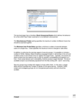
Launch your web browser and navigate to
192.168.0.1
.
Select
Quick Setup Wizard
from the center of the page.
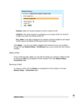
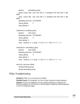
A login prompt is displayed. Enter the initial user name and password for the SnapGear
unit:
User name:
root
Password:
default
Note
If you are unable to browse to the SnapGear unit at 192.168.0.1, or the initial user name
and password are not accepted, press the black Erase button on the SnapGear unit’s
front panel twice, wait 20 – 30 seconds, then try again.
Pressing
Erase
twice within 2 seconds resets the SnapGear unit to its factory-default
settings. Erase will delete all current configuration settings, passwords and certificates.
However, any saved configurations (.sgu files) are NOT deleted.
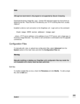
Enter and confirm a password for your SnapGear unit. This is the password for the user
root
, the main administrative user account on the SnapGear unit. It is therefore
important that you choose a password that is hard to guess, and keep it safe.
Note
The new password takes effect immediately. You are prompted to enter it when
completing the next step.
26
Getting Started
Plik PDF · ·
Pytania o Secure Computing SG570
Nie ma jeszcze pytań o tę instrukcję. Zadaj pierwsze.
